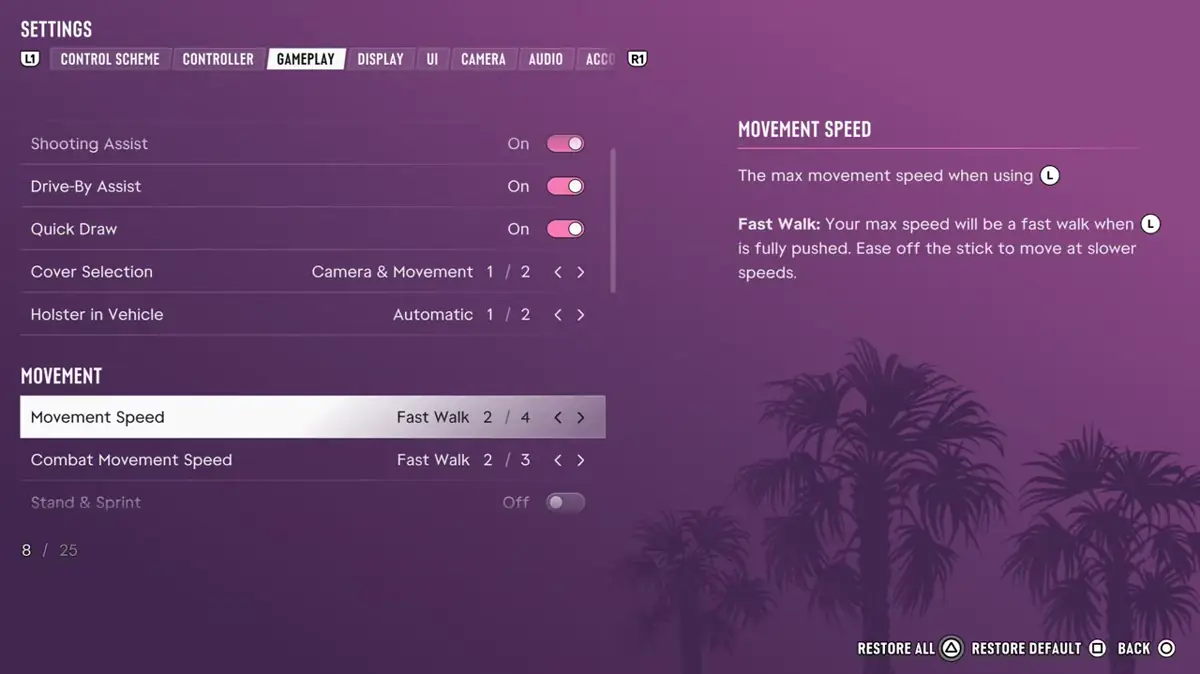
The best GTA 6 settings to change before you play are Movement Speed (try Jog), Targeting (the default Partial is enough for most people), progress notifications (on), motion blur (off) and the units of measurement if you don’t think in miles. This list comes from four English-speaking YouTube channels: NorZZa, BennyCentral, KhrazeGaming and MrDalekJD. The menu names are the ones on screen in NorZZa’s video.
Settings sit in the pause menu, split into tabs: Control Scheme, Controller, Gameplay, Display, UI, Camera, Audio and more. Buttons below are PS5. On Xbox, L3 is LS, R2 is RT and square is X.
Movement speed: try Jog
In the Gameplay tab, under Movement, Movement Speed decides your top speed when the left stick is pushed all the way. There are four options:
| Option | Full stick gives you |
|---|---|
| Walk | A walk. This is the default. |
| Fast Walk | A quicker walk. |
| Jog | A jog. |
| Run | A run. |
Sprint still works on top of any of them (click L3, or the button you mapped it to). BennyCentral uses Jog because it gives better control: small stick movements walk, and the edge of the stick jogs.
JorRaptor and JuiceHead go one step further and pick Run. With it, a full push on the stick has you running without touching your stamina. It’s not as quick as a real sprint, but you stop having to click the stick all the time. JuiceHead also confirms Walk is the default.
Right below it are two more:
- Combat Movement Speed: the same idea, only during fights. It has three options, and NorZZa picks Jog to reach cover and reposition faster.
- Stand & Sprint: with it on, pressing sprint while crouched makes you stand up and sprint instead of just moving a bit faster while crouched. It was off in NorZZa’s game, and the video suggests turning it on.
Targeting: Partial is usually enough
At the top of the Gameplay tab, under Combat, Targeting has three modes:
- Free Aim: no auto aim at all. Only your own inputs.
- Partial: the default. The in-game description says aiming moves toward a nearby target but won’t lock on.
- Lock-on: the reticle locks onto the target and stays there while you strafe around.
NorZZa thinks Partial is probably enough, and suggests lock-on if you struggle to aim with a controller. Aim Assist Strength, the next line down, lets you fine-tune it.
In his newer tips video, BennyCentral goes straight for Lock-on if you’re losing gunfights, since it makes landing shots far easier while you learn the game. JuiceHead points out that once you’re on lock-on, you can also turn on snapping from one enemy to the next.
Assist options: GTA 6’s easy mode
GTA 6 has no difficulty setting, but the bottom of the Gameplay tab does the same job. JuiceHead shows four options there:
- Accessible Combat: you take a lot less damage. MrRoflWaffles uses it so he stops dying mid-mission and losing the cash in his pockets, but warns it makes the game very easy. JuiceHead took on five stars right at the start with it switched on.
- Reduced Vehicle Damage: JuiceHead crashed over and over and the car stayed in one piece.
- Simplified Mini Games: BennyCentral says it makes hotwiring easier, and JorRaptor uses it for gym workouts. Benny keeps it off himself because he finds the normal mini games more fun.
- Auto Drive: how to use it is in how auto drive works in GTA 6.
What each one does, with the menus checked frame by frame, is in how to make GTA 6 easier.
Auto-equip helmet
Another Gameplay option puts a helmet on every time you get on a bike and takes it off when you get off. NorZZa tested it a lot, and crashing with a helmet seemed to do less damage, although no two crashes are the same, so it’s hard to measure. In one fight after a crash, the other driver punched Jason on his helmet and ended up hurting his own hand. You can also put a helmet on by hand from the radial wheel.
Notifications: keep the useful ones
- Progress notifications for weapons, vehicles and animals: turn them on. You get a pop-up when you study an animal or find new gear, weapons or vehicles, which helps if you track collectibles or go for 100%. BennyCentral gives the same advice about discovery alerts, because there is so much to find.
- Criminal profile and relationship pop-ups: you can turn these off in the UI tab. The game still tracks both, you just stop seeing the messages. What the profile does is in criminal profile explained.
Minimap and compass
The UI tab lets you show the minimap, the compass, both or neither, and choose whether they stay on screen all the time or show up only when needed. NorZZa recommends the dynamic option at first: the screen stays clean while you explore, and pressing down on the D-pad brings them back along with your stats. NorZZa has both on for now but plans to drop the minimap later and keep only the compass, to watch the world instead of the GPS. JorRaptor also keeps the compass on, because it makes it easier to find a car you parked nearby and to spot activities and icons around you.
Units of measurement
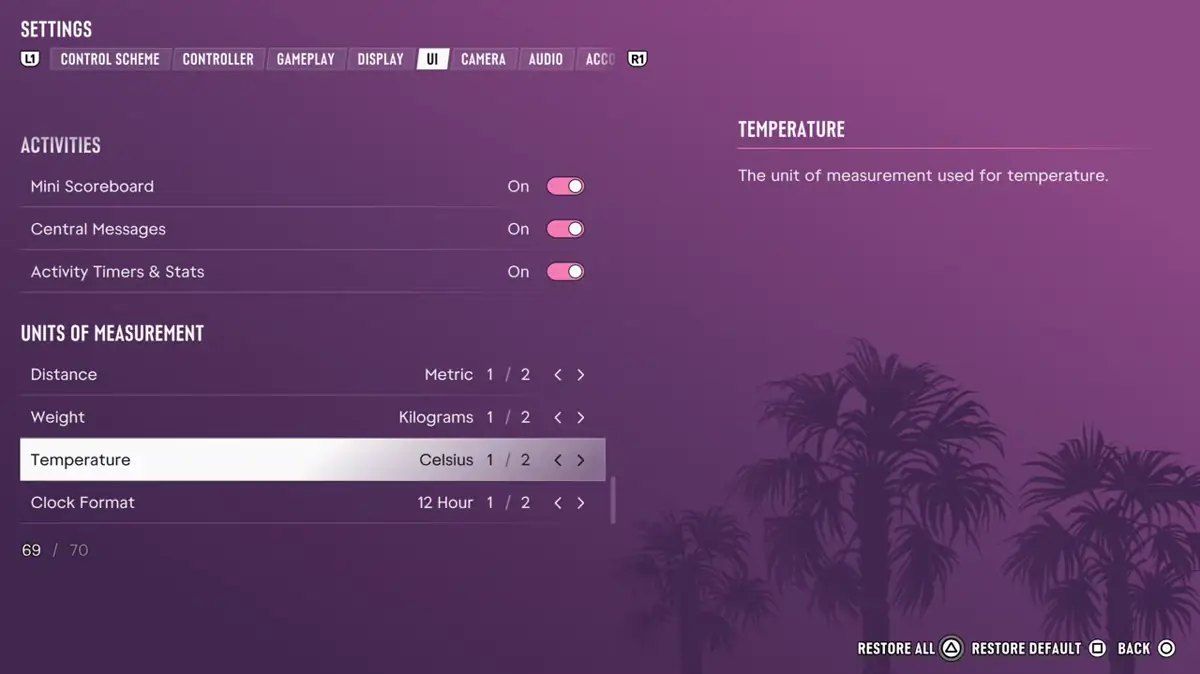
Near the end of the UI tab, under Units of Measurement, you can set Distance to Metric, Weight to Kilograms and Temperature to Celsius. There’s a Clock Format option there too. NorZZa recommends the switch for anyone outside the US.
Motion blur off, vibration on
- Motion blur: BennyCentral turns it off right away. It makes things harder to see at speed, and he says the game runs at 30 fps, which makes it worse.
- Vibration: keep it on. BennyCentral normally plays without it, but in GTA 6 a sudden strong rumble while you’re on foot means something worth scanning is nearby, like a piece of art. Hold up on the D-pad to open the Waink app and look around. The same app scans cars for trackers.
Camera: height, speed and zoom
The Camera tab has separate settings for on foot and driving. You can change how fast the camera turns and its height, from low to high. NorZZa notes the height difference is small.
Zoom is a shortcut, not a menu option. KhrazeGaming shows it: hold down on the D-pad and press square to switch between three distances, over the shoulder, midway and far away. It’s kept separately on foot and in vehicles. NorZZa mentions the same three zoom levels.
MrDalekJD answers a question people keep asking: there is no first-person mode in GTA 6, and camera height is the closest setting. The one exception is aiming. With certain attachments on your gun, clicking both sticks while aiming switches to a first-person view. He says this works “if you don’t have focus”, which isn’t fully clear. Everything else stays third person.
Control scheme
If the controls feel odd and you’re used to the older games, BennyCentral suggests switching the control scheme to Classic so it plays more like past GTAs.
Phone settings
The in-game phone has its own settings. NorZZa shows you can change the ringtone or turn it off, and pick a wallpaper. Phone cases are sold at Zeke’s Electronics in Hamlet, north of the Keys where the game starts. The same store sells headphones, so you can listen to music and podcasts while you walk around.
For the rest of the early game, see the beginner tips. For controls the game never explains, like flipping cars and the car menu, see hidden features.